
JLJL3 Deposit: Five Channels, Each With Its Own Popup
You make a JLJL3 deposit through GCash, GCashQR, Maya, GoTyme or USDT, and the channel sets the rest: ₱50 to ₱50,000 per deposit, 10 to 15 minutes to pay, and a different popup, from Maya’s login to GoTyme’s countdown. The steps before the popup are the same for all five, and one of them, Choose Promotion, decides whether a bonus, with conditions attached, rides on your deposit.
Which Channel Fits Which Amount: Limits and Payment Windows
JLJL3 deposit limits fall into three tiers: GCash, GCashQR and Maya take up to ₱50,000 per deposit, GoTyme stops at ₱20,000, and USDT stops at ₱10,000. The table lists channels in descending order of cap and puts the payment window beside each cap, because the amount you plan to deposit narrows the choice before any wallet preference does.
| Channel | Per deposit | Pay within | Fits when |
|---|---|---|---|
| GCash | ₱100 to ₱50,000 | 10 minutes | Your wallet is GCash and the amount reaches ₱50,000 |
| GCashQR | ₱100 to ₱50,000 | 10 minutes | You have no GCash wallet but use Maya, ShopeePay or a bank app |
| Maya | ₱50 to ₱50,000 | 10 minutes | You deposit from ₱50 up to ₱50,000 from a single wallet |
| GoTyme | ₱50 to ₱20,000 | About 10 minutes | Your deposit stays at ₱20,000 or less and you use the GoTyme app |
| USDT | ₱100 to ₱10,000 | About 15 minutes | You hold USDT, a dollar-pegged cryptocurrency, on the TRON network and deposit ₱10,000 or less |
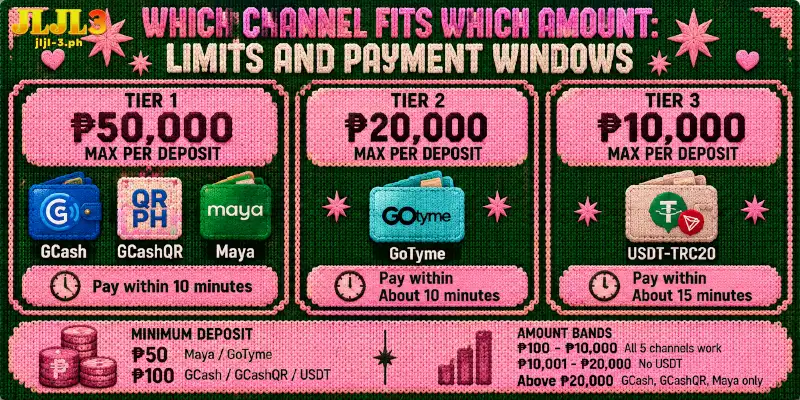
In practice the amount sorts the choice into three bands: between ₱100 and ₱10,000, all five channels work for a JLJL3 deposit, so the wallet you already hold decides; between ₱10,001 and ₱20,000, USDT drops out; above ₱20,000, only GCash, GCashQR and Maya take a single deposit.
Floors differ as well: Maya and GoTyme accept a deposit at JLJL3 from ₱50, while the other three channels start at ₱100. The Deposit page asks you to complete payment within ten minutes, GoTyme adds a separate countdown, and USDT allows about fifteen minutes for the transfer to leave your wallet or exchange.
Your own wallet sets a second ceiling: GCash and Maya each limit what an account can hold and send by how fully you have verified that account, so a deposit inside the table’s cap can still fail. Check your limits in the wallet app before you pick a high amount for a deposit at JLJL3.
Those caps apply to money going in, and money coming out has fewer routes: JLJL3 pays out through only two of the five channels, GCash and Maya. A GoTyme or USDT deposit at JLJL3 therefore has no same-channel way back, so choose either one only if you also hold a GCash or Maya wallet to receive withdrawals.
What Do You Need on Hand for Each Channel?
Once the amount points to a channel, that channel needs one thing ready before the popup opens, because installing an app or resetting a password in the middle of a payment uses up the payment window.
- GCash: the GCash app, signed in. The QR layout also accepts any app that reads QRPh, the shared QR standard of Philippine wallets and bank apps.
- GCashQR: any app that reads QRPh, whether GCash, Maya, ShopeePay or a bank app.
- Maya: your Maya mobile number and password, which the popup asks for before payment is confirmed.
- GoTyme: the GoTyme app installed, because the popup sends you there to pay.
- USDT: a wallet or exchange that can send USDT on the TRON network, with a withdrawal screen that shows the amount arriving after fees.
Make a JLJL3 Deposit in Seven Steps, From Deposit Page to Balance
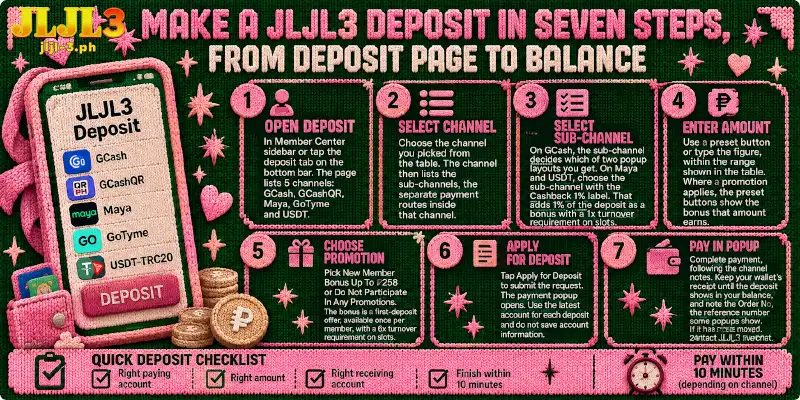
With the channel chosen and the app ready, steps 1 to 6 of a JLJL3 deposit are the same on every channel, and step 7 is the payment, where the channels split.
- Open Deposit in the Member Center sidebar, or tap the deposit tab on the bottom bar of the app. The page lists five channels: GCash, GCashQR, Maya, GoTyme and USDT.
- Select the channel you picked from the table. The channel then lists the sub-channels, the separate payment routes inside that channel.
- Select the sub-channel. On GCash, the sub-channel decides which of two popup layouts you get, both described below. On Maya and USDT, choose the sub-channel that carries the Cashback 1% label. That label adds 1% of the deposit as a bonus with a 1x turnover requirement on slots, meaning you wager the deposit plus the bonus once before withdrawing.
- Choose the amount with a preset button or type the figure, within the range shown in the table. Where a promotion applies, the preset buttons show the bonus that amount earns.
- In Choose Promotion, pick New Member Bonus Up To ₱258 or Do Not Participate In Any Promotions. The New Member Bonus is a first-deposit offer, available once per member and credited automatically, with conditions attached: a 6x turnover requirement on slots, the same wagering of deposit plus bonus, six times over. Pick the offer only if you plan to meet that requirement.
- Tap Apply for Deposit to submit the deposit request. The payment popup opens. The page tells you to use the latest account for each deposit and not to save account information.
- Pay inside the popup, following the channel notes below. Keep your wallet’s receipt until the deposit at JLJL3 shows in your balance, and note the Order No, the reference number some popups show. If the balance has not moved, JLJL3 support answers 24/7 through live chat.
Quick Deposit Steps, the checklist on the Deposit page, lists four checks for every deposit at JLJL3: enter the right paying account, the right amount and the right receiving account, and finish within 10 minutes.
Each Channel Opens a Different Popup, From Wallet Scan to TRON Transfer
Step 7 is where the channels diverge. The five JLJL3 deposit popups run from the least work outside the popup to the most, and each one ends with a different action on your side: a scan, a login, an app handover or a blockchain transfer.
GCash: Scan the One-Time QR or Tap Open in GCash
At JLJL3, the GCash deposit popup opens in one of two layouts, depending on the sub-channel. One layout shows a one-use QR that any QRPh app can scan, next to an Open in GCash button. The other asks you to finish in the GCash app, through Open in GCash or a GCash login and a QR scan.
Tap Open in GCash on the phone that holds the app, or scan the QR with your phone when you deposit from a desktop. GCash sub-channels carry no Cashback 1% label.
GCashQR: Pay From Any QRPh App, Even Without GCash
A deposit at JLJL3 through GCashQR opens a popup titled Pay with QRPh, which shows an Order No, the Amount Due, a Next button and the QR. With GCash installed, Next opens the app. Without a GCash wallet, scan the QR with Maya, ShopeePay or any bank app, since all of them read QRPh.
Maya: Log In Inside the Popup to Confirm Payment
A JLJL3 Maya deposit starts with a login screen inside the popup, headed Login Maya to confirm payment. Type your Maya mobile number and password there and tap Log in. Because the login happens inside the popup, a forgotten password stops the deposit before the payment starts, so reset the password in Maya first.
GoTyme: Pay Before the Countdown Ends, Once Per QR
On GoTyme, a deposit at JLJL3 opens the Gotyme Payment popup with the amount, a QR and a countdown of about ten minutes. The QR changes in real time and the popup warns against repeating payment, so scan the live QR once. The GoTyme app completes the payment, and the Click here to open App link takes you there.
USDT: TRC20 on TRON Only, and the Arriving Amount Must Match
Every deposit at JLJL3 in USDT starts with the system converting your peso amount into USDT at the current rate. The popup then shows the USDT figure, a QR and a wallet address on USDT-TRC20 (TRON), with about fifteen minutes to pay. The address accepts USDT-TRC20 only, so copy the address from each new popup.
An exchange that deducts the withdrawal fee from the amount you enter leaves the arriving figure short of the popup, so a USDT deposit at JLJL3 does not land. Read the receive amount on the exchange’s withdrawal screen and raise the withdrawal until that figure matches the popup.
Your own wallet pays the TRON network fee in TRX or from staked energy, so keep a small TRX balance in that wallet.
Have the wallet app open and signed in before you start a deposit at JLJL3: the GoTyme countdown and the USDT window both limit how long you have, and the QR or address inside the popup belongs to that one request.
FAQ
Three questions sit at the edges of the main flow: the ₱50 floor, a sum above one channel’s cap, and what you set up before the first deposit.
Does a ₱50 JLJL3 Deposit Qualify for the New Member Bonus?
New Member Bonus tiers start at a ₱100 deposit, so a ₱50 deposit at JLJL3 on Maya or GoTyme sits below the first tier. If the first tier matters to you, start the deposit at ₱100 or more.
How Many Deposits Does ₱30,000 Take on Each Channel?
One deposit at JLJL3 covers ₱30,000 on GCash, GCashQR or Maya, while GoTyme takes two (for example ₱20,000 and ₱10,000) and USDT takes three at ₱10,000 each. The figures are an example built from the per-deposit limits in the table.
Do I Need to Link a Wallet Before My First JLJL3 Deposit?
No. The Deposit page asks for no wallet linking, and the steps above run from the channel to the popup. Linking an e-wallet and setting a Transaction Password come before your first withdrawal, so you can finish the deposit at JLJL3 first and set both up afterwards.
Match a JLJL3 Deposit to the Amount, Then Finish Inside the Window
Two things can stall a JLJL3 deposit before the popup even matters: a channel whose cap sits below your amount, and a wallet that is not ready when the payment window opens. Settle both first, and what remains inside the popup is a single action on your side.