
How to Install the JLJL3 App on Android and iPhone
The JLJL3 app installs differently on each phone. Android installs an APK (Android’s installer file) downloaded from the website, while iPhone adds an iOS Lite-App, a home-screen icon installed from a downloaded profile. Each route has a prompt that can pass for a warning or a finish line but is only a middle step, and a profile left uninstalled for 8 minutes is wiped.
Which Route Fits Your Phone: APK on Android, Profile on iPhone
Your phone decides the route: Android phones install an APK file, and iPhones install the iOS Lite-App through a profile. An iPhone cannot install APK files, which is why the app from JLJL3 has no APK download for iOS.
Use the table to match the first prompt on your phone with what the prompt means, so you can recognise a normal step when one appears.
| Phone | What installs | First prompt you will see | What the prompt means |
|---|---|---|---|
| Android | An APK file from the website | File might be harmful, on phones that show the warning | A generic browser warning; Download anyway continues the install |
| iPhone | The iOS Lite-App, added through a profile | This website is trying to download a configuration profile | A download request only; nothing installs until you finish in Settings |
Both prompts come from your browser, not from the website, and neither means the install has failed. JLJL3’s app has no App Store listing on iPhone, so searching the store finds nothing. The way in is the website itself, so every JLJL3 download starts there.
Three Places to Start the Download, Plus the QR Page
Both the JLJL3 app download for Android and the iOS Lite-App start on the website, and three entry points reach them from wherever you are on the website:
- The JLJL3 APP item in the menu
- The Download button in the top bar
- The floating Download button, which stays on every page
Two QR codes on the JLJL3 app page cover iOS and Android. Scan the code that matches your phone, allow the install when the phone asks, then open JLJL3’s app to log in or register. If a code will not scan, the Click to download link on the same page works as a backup.
A QR code opens the download on the phone that scans the code, so a session that starts on a computer still ends with the install on your phone.
Android Takes Three Checks Before the APK Installs
If you wonder how to install JLJL3 on Android, the answer is three checkpoints after you tap Download: your browser may warn about the file, Android asks whether that browser may install apps, and the installer asks for a final confirmation. The five steps below follow that order, and each shows a sign that the step worked.
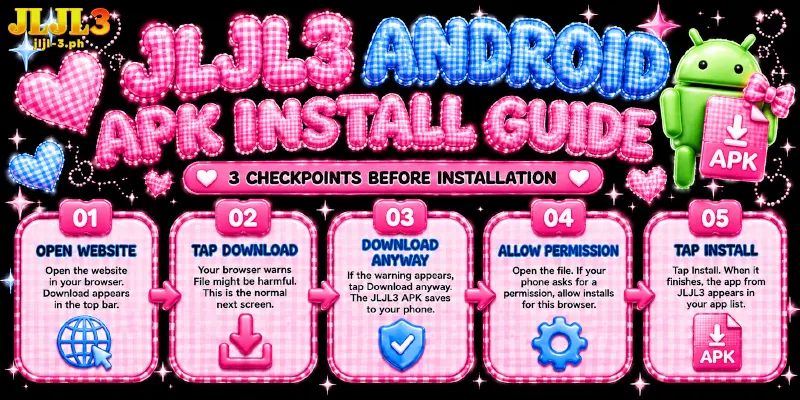
- Open the website in your phone’s browser. Download appears in the top bar.
- Tap Download. Your browser warns File might be harmful, which is the normal next screen; on some phones the file downloads without a warning.
- If the warning appears, tap Download anyway. The JLJL3 APK download saves to your phone and shows up in the browser’s downloads list.
- Open the downloaded file from that list. Your phone asks Do you want to install this app? If the phone stops you first and points to a permission, allow installs for this browser, then return to the file.
- Tap Install. When the installer finishes, the app from JLJL3 appears in your app list.
Android 8 and later grants install permission per app. The permission therefore belongs to the browser you used, not to JLJL3’s app, and the permission stays on until you switch off that browser’s install setting under special app access; the exact path differs between phone makers.
Android’s warning is generic and some phones skip the warning, so the screen alone never shows whose file you are installing. Because the APK downloads straight from the website, the address you start from is the one check you control: begin at the official address, jljl-3.ph, and skip files forwarded through chat groups.
Start in Safari, Finish in Settings: Allow Only Downloads the Profile
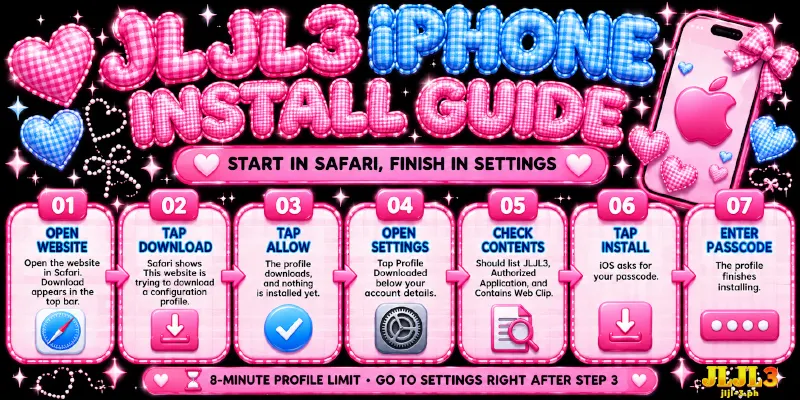
Unlike on Android, tapping Allow on iPhone only downloads the profile; the install itself happens in Settings. iOS stores the install as a configuration profile (a settings file kept under Settings) that contains a web clip (a home-screen icon that opens a web page like an app).
A JLJL3 iOS install needs Safari and the passcode iOS asks for at the end. If Stolen Device Protection is on, Apple requires you to be in a familiar location, or to switch that feature off, while you install a profile. The seven steps below run from Safari to the passcode prompt.
- Open the website in Safari. Download appears in the top bar.
- Tap Download. Safari shows This website is trying to download a configuration profile.
- Tap Allow. The profile downloads, and nothing is installed yet.
- Open Settings and tap Profile Downloaded, which sits below your account details. An Install Profile screen opens.
- Read the contents line. The line should list JLJL3, Authorized Application, and Contains Web Clip, which means the profile only adds the home-screen icon. If the line lists anything else, stop here and ask Customer Service.
- Tap Install. iOS asks for your passcode.
- Enter the passcode. The profile finishes installing.
Allow only downloads the profile, and iOS deletes an uninstalled profile after 8 minutes, so go to Settings right after step 3 instead of leaving the install for later. If the 8 minutes pass, repeat steps 2 and 3 and install at once.
Inside the JLJL3 App: Five Tabs, the Member Menu, and the Reward Icon
After either install, the JLJL3 app shows five tabs in the bottom bar, and each maps to something you would otherwise do from the website menu:
| Tab label | What opens | Tap the tab when |
|---|---|---|
| Home | The home screen, where the APP reward icon sits | You look for the app voucher |
| Promosyon | The promotions list | You check current offers |
| Deposito | The deposit page | You add funds |
| Mag-imbita | The invite-friends page, with your referral link and a Leaderboard | You share your link |
| Miyembro | The member menu | You need records, security, or rewards |
That last tab is the app’s Member Center. The menu lists VIP, deposit, withdrawal, share, security, records, betting list, and profit and loss, plus Reward Center, which JLJL3’s app labels Gantimpala.
You claim the ₱58 app voucher from the APP reward icon in the bottom-right corner of the home screen, once your total deposits reach ₱1,000 and your valid slot bets reach ₱5,000.
FAQ
Because the website still handles deposits, withdrawals, and rewards, the answers below focus on what the app from JLJL3 adds beyond the website and what to do if the install goes wrong.
Do I Need the JLJL3 App to Deposit, Withdraw, or Claim Rewards?
No. Deposit, Withdrawal, and Reward Center all sit in Member Center on the website, so a browser covers all three; the one item that starts from the app is the app voucher described above.
Where Do Rewards Appear Inside the App?
Open the Member Center tab, tap Reward Center, choose I-Claim, and tap Kunin next to the voucher you want. Reward Center shows a deadline for each voucher, so claim the voucher with the nearest deadline first; the terms of each offer are on the Promotions page.
Do I Register Again After Installing?
No, if you already have an account. The app from JLJL3 opens to a login and register screen, so log in with your existing account and register only if you are new.
How Do I Remove the JLJL3 App Later?
Remove JLJL3’s app on Android like any other app. On iPhone, open Settings, go to General, then VPN & Device Management, tap the profile you installed, and tap Delete Profile; Apple notes that deleting a profile removes its settings, so the web clip and its icon go too. Older iOS versions call the menu Profiles & Device Management.
Where Can I Get Help if the Install Stalls?
Tap Customer Service in the website’s floating menu to open live chat, or contact JLJL3- 24/7 Support on Telegram, which runs around the clock. Tell the agent your phone type and the last prompt you saw, which saves a round of questions.
The First Prompt Is Never the Last Step on Either Route
Each route places the decision point on a screen that can pass for the end: the browser warning on Android and the Allow button on iPhone. Treat both prompts as the start of the next step, and once the icon sits on your phone, open the app from JLJL3 and log in or register.