
JLJL3 Login Takes a Password or One Tap, and Forgot Password Goes Through Live Chat
JLJL3 login takes a username and a password, or one tap on Telegram or Google. When the login box refuses you, Forgot Password opens a live chat, not an email reset, and you can gather the three details the chat needs beforehand. Past the login box, ten Member Center sections wait, and one of them holds the setup that your first withdrawal needs.
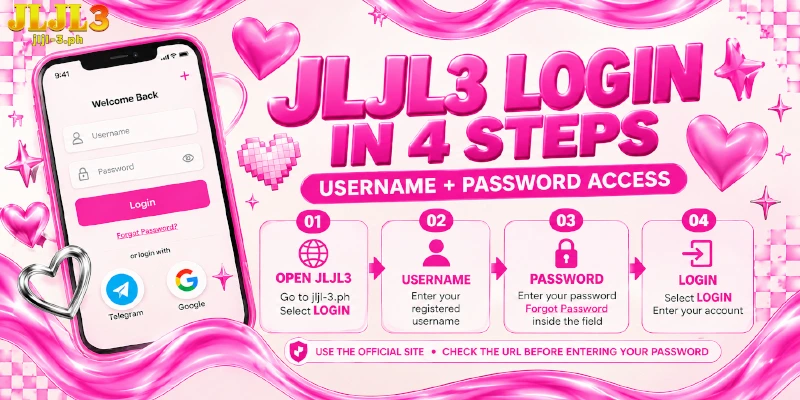
JLJL3 Login With a Username and Password Takes Four Steps
You finish a login at JLJL3 in four actions inside one login box. Pages open in Tagalog by default, and the language switch in the header bar offers English, so switch first if you want English labels as you follow along.
- Open jljl-3.ph and select Login. The JLJL3 login page appears as a box with two fields, a Login button, a banner and two buttons for Telegram and Google.
- Type your username in the first field.
- Type your password in the second field. The Forgot Password link sits inside this field, so the recovery route stays within reach if the password slips.
- Select Login to finish your login at JLJL3. You land in your account when the username and password match, and you get the refusal message covered below when they do not.
Look-alike sites and profiles exist, so begin from the address in step 1 and never type your password into a page that a message or an ad sent you.
No account yet? The Register link at the bottom of the login box starts one. After you install the app, the app’s first screen offers login and register, which is where a JLJL3 login on the app begins.
Telegram and Google Log You In Without a Sign-Up
JLJL3 login with Telegram skips steps 2 and 3 and needs no sign-up: the Telegram button sits under the Or divider in the login box, below a banner that reads “No sign-up needed, tap to login instantly!” The Google button sits below the same banner, and both buttons open a popup that links your account.
- Select Telegram or Google to start your login to JLJL3.
- Follow the popup that opens to link the account you picked.
Telegram and Google replace the username and password you would otherwise create in the Register box. On a new device, sign in to the same Telegram or Google account there before you tap the button, and the login to JLJL3 works as usual.
Ten Member Center Sections, and the One That Holds Your Withdrawal Setup
After a JLJL3 login on the web, the Member Center sidebar lists ten sections, and My Account opens the Security Level screen, which holds the Link E-wallet and Transaction Password steps. Link E-wallet connects your GCash or Maya e-wallet, and Transaction Password is the second password that confirms every money action.
Finish both right after your first login to JLJL3, because a withdrawal needs both and the e-wallet must carry your own full name; a name mismatch makes the withdrawal fail.
Read the table in sidebar order; the last column names the moment each section matters.
| Section | What the section holds | Open the section when |
|---|---|---|
| Deposit | The deposit channels that add funds to your balance | You want to add funds |
| Withdrawal | Cash out to a linked GCash or Maya e-wallet | Your e-wallet and Transaction Password are set |
| My Account | Security Level, Personal Information, Link E-wallet and Transaction Password | Before your first withdrawal |
| Betting Record, Account Record, Profit And Loss | Three histories: your bets, your account activity, and your profit and loss | You want to check what happened |
| Reward Center | Vouchers with deadlines and a Promo Code box | A voucher deadline is near |
| Invite Friends | Your invitation link | You want to invite a friend |
| Internal Message | An Inbox and an Outbox that hold your reward notices | A reward or notice is expected |
| Manual rebate | Where you claim the rebate on your bets by hand | You want to claim a rebate |
Your first login of each day also enters you into the Daily Login Lucky Wheel, and the wheel’s voucher is valid for that day only, so open Reward Center before the day ends.
On a phone, the last tab of the app’s bottom bar opens a member menu that covers deposit, withdrawal, security, rewards, records, your bet list, and profit and loss, so the same groups stay within reach.
Login Password Rules and Where to Change Yours
The same Security Level screen recommends a JLJL3 login password that mixes letters with numbers, and uppercase with lowercase. For a JLJL3 change password, open My Account and then Security Level, where the login password sits next to Personal Information, Link E-wallet and Transaction Password.
That screen also lists a score, your last login time and your last login IP, so you can tell whether a login at JLJL3 was yours. If an entry looks unfamiliar, change the login password first and then tell support in the live chat.
Your login password only opens the door, because Transaction Password confirms the money actions, so choose a different string for each instead of reusing one.
What Does the Login Box Show When Access Is Refused?
When your JLJL3 login fails at step 4, the login box shows one message that asks you to check your username and password or to use Forgot Password. The message adds that a problem which persists may come from the account status, so you contact Customer Support.
That wording names both causes and picks neither, so the table below follows a refusal from that first message to the live chat.
| What appears | What the sign means | Your next move |
|---|---|---|
| The refusal message | Either the details did not match, or the account status is the cause | Retype once, carefully; further guesses lead toward the captcha, so run the checks below instead |
| A captcha in the login box | Several wrong attempts in a row; a captcha is a short check that a person, not a script, is typing | Complete the captcha, then log in |
| The live chat window | Forgot Password and the Customer Service button on the floating widget, which stays on every page, both open the same chat | Send the details the agent asks for |
The message cannot tell a typing slip from an account status problem, which is why one careful retype is the only test to run before the next section’s checks and, if they fail, a ticket, the written support request that the live chat takes.
Four Checks Before a Refusal Becomes a Ticket
If a JLJL3 cannot login error survives the retype, four checks cover the causes you can test yourself, in this order, starting with the checks that take seconds.
- Type the username you registered, not the Nickname that Personal Information holds, because the login box asks for the username.
- Tap the button you used for your first login to JLJL3: an account that began with Telegram or Google opens through that same button, on the same Telegram or Google account, before you try a password.
- Retype the password slowly with Caps Lock off, and remove any stray space at either end of a pasted password.
- On iPhone, test the same details in Safari. The iOS Lite-App is a web clip, a home-screen shortcut to the site, which a configuration profile installs in place of an App Store listing. A JLJL3 login error on iOS that Safari does not repeat therefore points to the clip.
If all four checks pass and the box still refuses you, the message itself names the account status as the other cause, and the live chat is the next move.
A JLJL3 Forgot Password Reset Takes One Live Chat Ticket
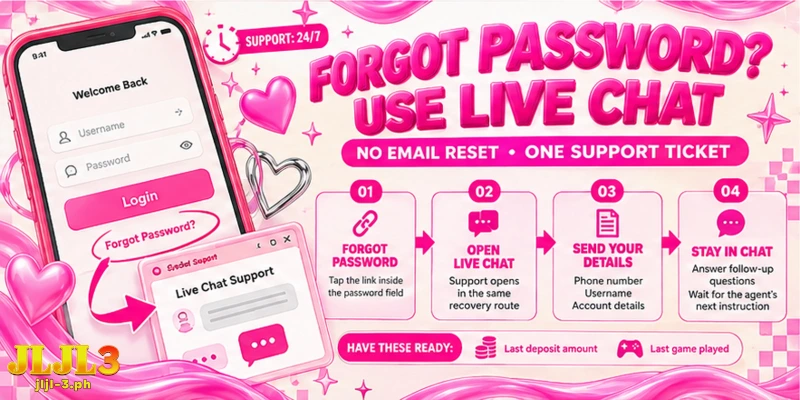
When a login to JLJL3 stays refused, Forgot Password opens the support live chat from inside the password field; the link sends no reset by email. The chat opens with a note that replies typically come within a few minutes, and Support runs around the clock.
- Select Forgot Password in the password field to open the live chat.
- Write your phone number, your username and the important details you added to the account in your first message. Together they make up the ticket that asks the agent for a new password.
- Answer the agent’s follow-up questions, which depend on your case and can include your last deposit amount and the last game you played.
- Stay in the same chat window until the agent confirms what to do next.
Look up that deposit and that game before you open the chat, since a reply that arrives within minutes is easier to answer when both are already at hand.
FAQ
These three questions cover points that the login steps, the checks and the ticket leave open.
Does a JLJL3 Login Work With a GCash or Maya Account?
No. The login box takes a username and password, or a Telegram or Google tap, and GCash and Maya only come in after you sign in, when you link one of them as your e-wallet under My Account.
Do I Need to Upload ID Documents for a Login at JLJL3?
No. Nothing in the login box asks for a document, and the Security Level screen has no document upload; the full name on your linked e-wallet is what a withdrawal checks.
What If the Live Chat Does Not Open During a Login at JLJL3?
Use the Telegram button on the same floating widget, which leads to the JLJL3- 24/7 Support channel. The Facebook button sits on that widget too.
Two Ways In, One Way Back When Access Fails
Whenever you start a JLJL3 casino login, you choose between a password and one tap, and a refusal leads to one place, the live chat. Past your login to JLJL3, Member Center holds the rest of what you do with your account.